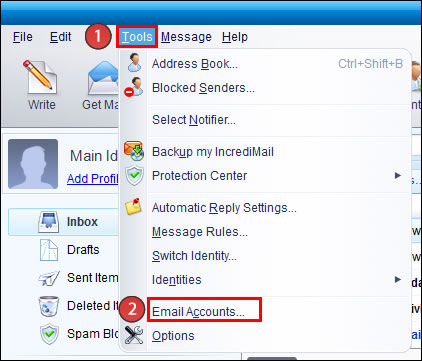
1. Do the following:
- 1. Select “Tools”
- 2. Select “Email Accounts”
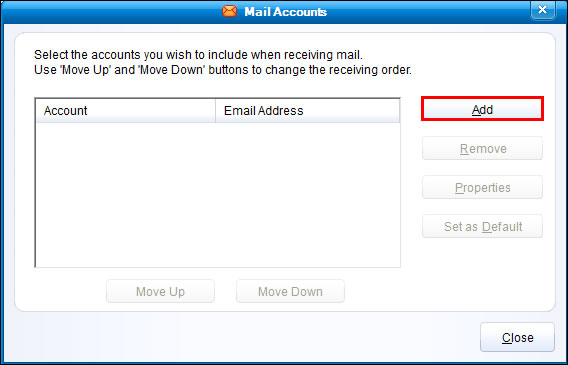
2. Select “Add”.
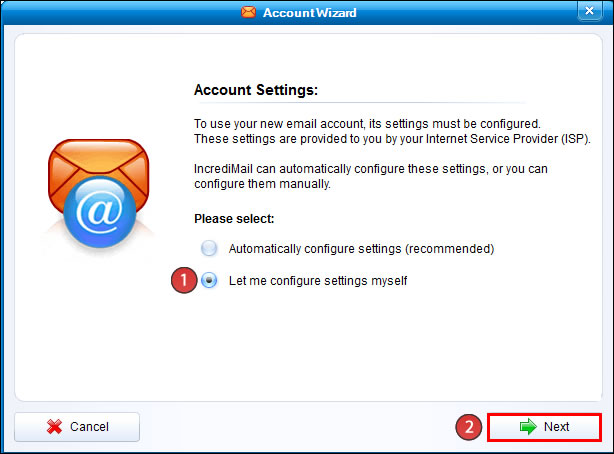
3. Do the following:
- 1. Select “Let me configure settings myself”
- 2. Select “Next”
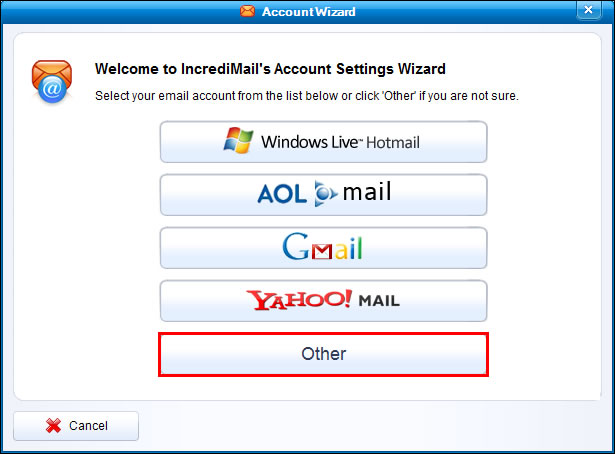
4. Select “Other”.
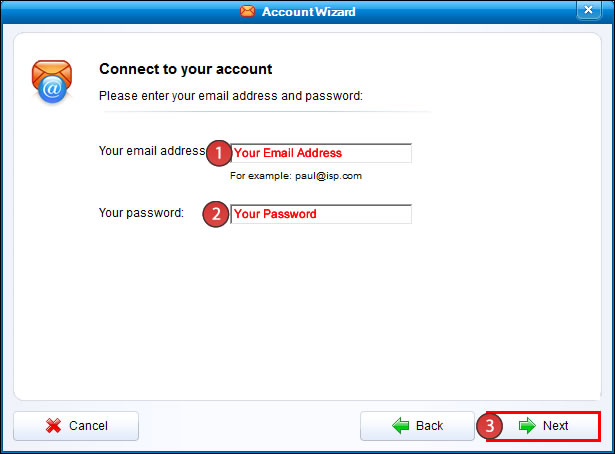
5. Enter the following:
- 1. Your Email Address
- 2. Your Password
- 3. Select “Next”
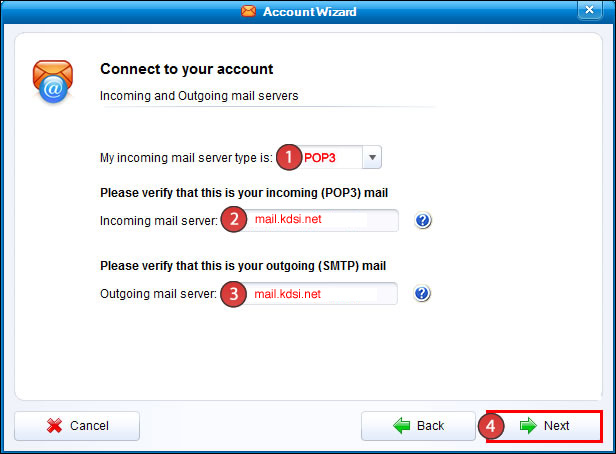
6. Enter the following:
- 1. Select POP3
- 2. Incoming mail server: mail.kdsi.net
- 3. Outgoing mail server: mail.kdsi.net
- 4. Select “Next”
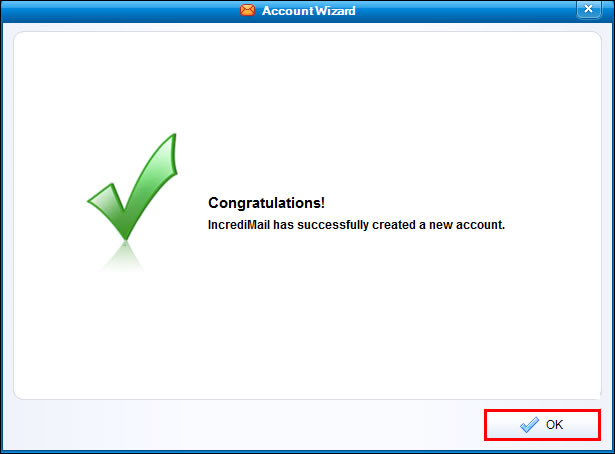
7. Select “OK”.
8. Do the following:
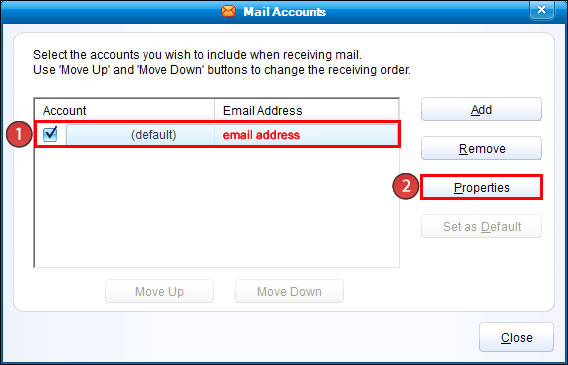
- 1. Select the email account that you created
- 2. Select “Properties”
9. Do the following:
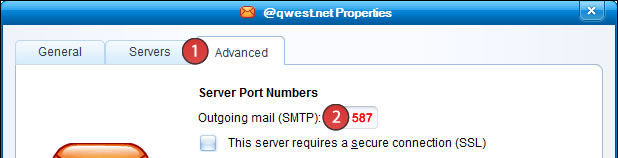
- 1. Select the “Advanced” tab
- 2. Enter 587 for the Outgoing mail (SMTP)
10. Do the following:
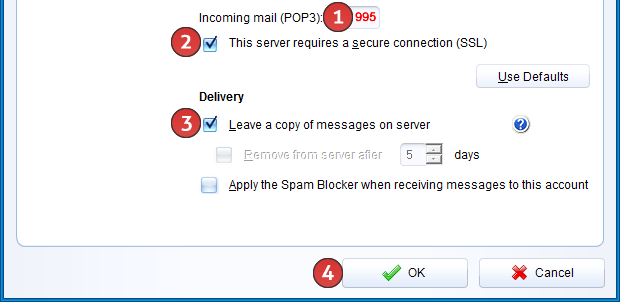
- 1. Enter 995 for the Incoming mail (POP3)
- 2. Select “This server requires a secure connection (SSL)”
- 3. Select “Leave a copy of messages on server”
- 4. Select “OK”
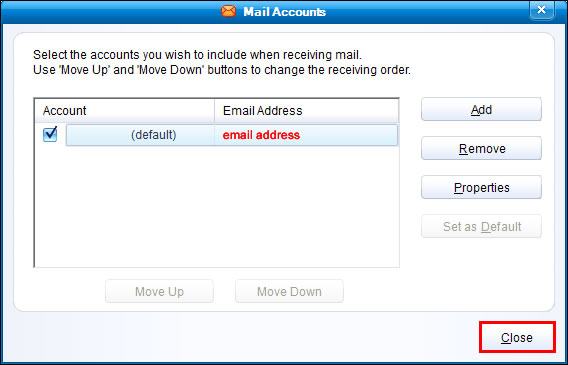
11. Select “Close”.