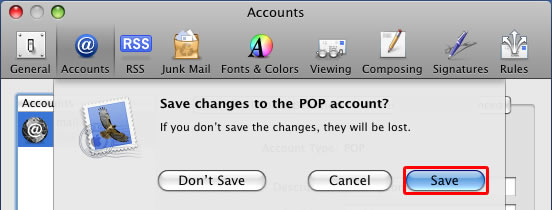
1. Do the following:
- 1. Select “File
- 2. Select “Add Account”
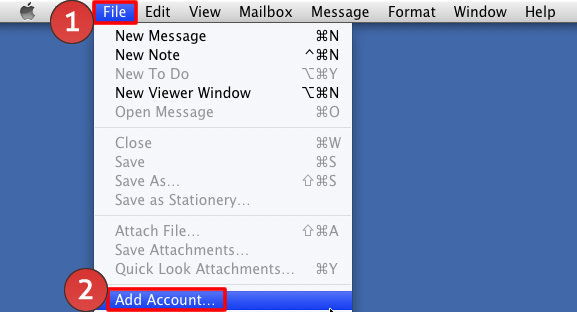
2. Do the following:
- 1. Enter “Your Name”
- 2. Enter “Your Email Address”
- 3. Enter “Your Password”
- 4. Select “Continue”
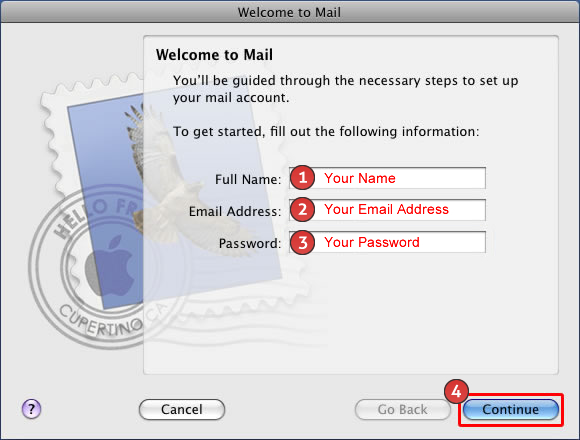
3. Select “Setup Manually”.
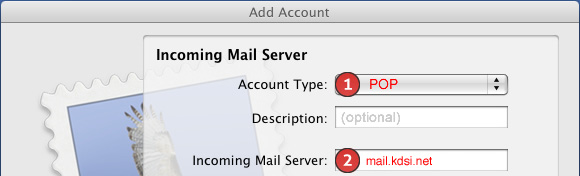
4. Do the following:
- 1. Select POP for the “Account Type”
- 2. Enter mail.kdsi.net for the “Incoming Mail Server”
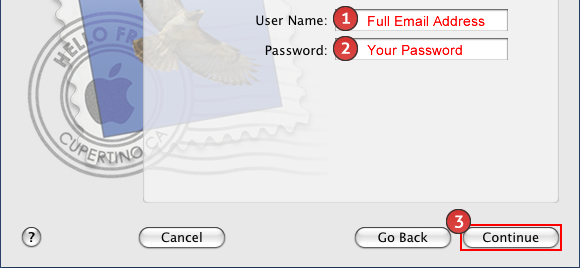
5. Do the following:
- 1. Enter your “Full Email Address”
- 2. Enter “Your Password”
- 3. Select “Continue”
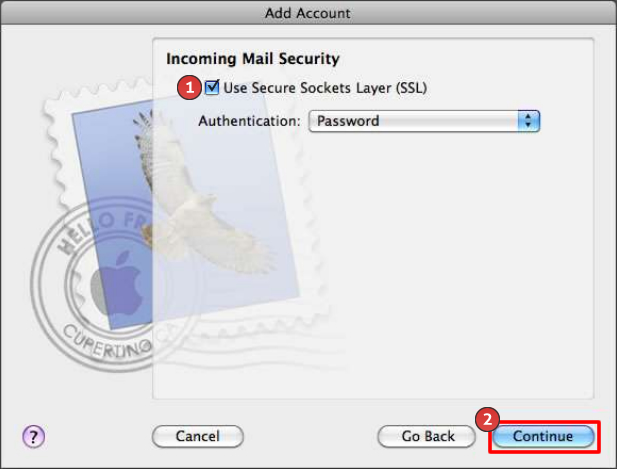
6. Do the following:
- 1. Select “Use Secure Sockets Layer (SSL)”
- 2. Select “Continue”
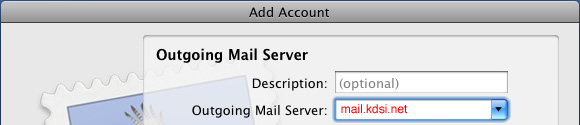
7. Enter mail.kdsi.net for the “Outgoing Mail Server”.
8. Do the following:
- 1. Enter your “Full Email Address”
- 2. Enter your “Password”
- 3. Select “Continue”
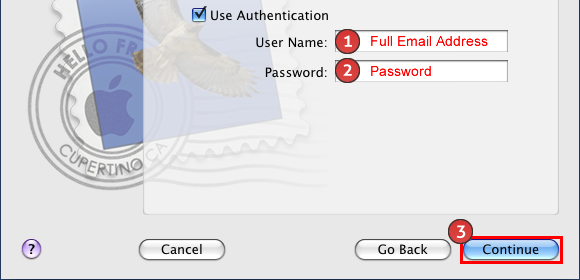
9. Select “Setup Manually”.
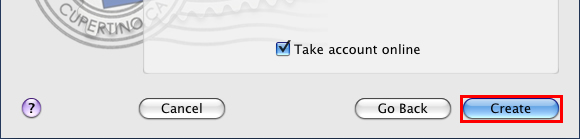
10. Select “Create”.
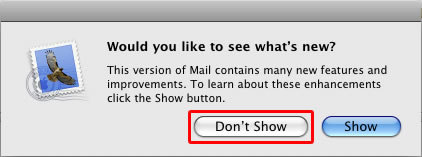
11. Select “Don’t Show”.
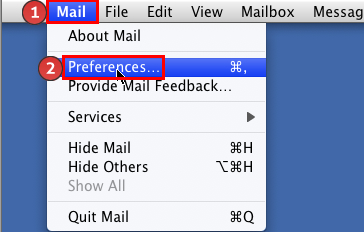
12. Do the following:
- 1. Select “Mail”
- 2. Select “Preferences”
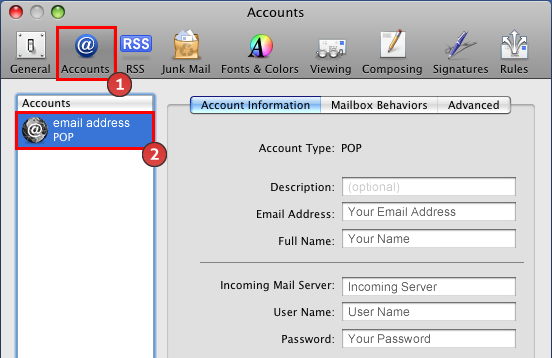
13. Do the following:
- 1. Select “Accounts”
- 2. Select the email address you want to edit
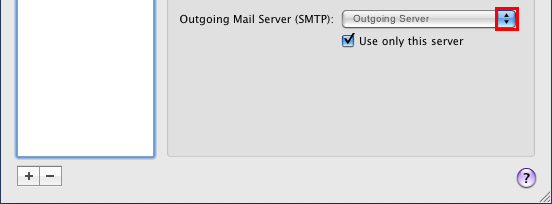
14. Select the drop down next to “Outgoing Mail Server (SMTP)”.
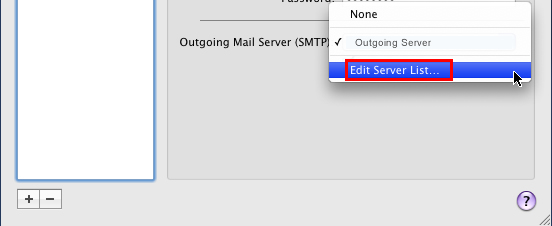
15. Select “Edit Server List”.
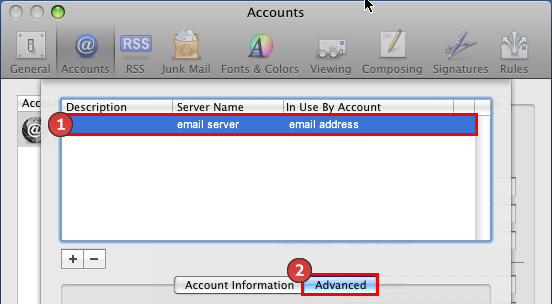
16. Do the following:
- 1. Select the “Server Name”
- 2. Select the “Advanced” tab
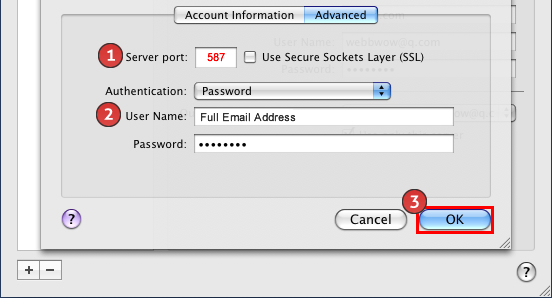
17. Do the following:
- 1. Enter 587 for the “Server Port”
- 2. The User Name is your ‘Full Email Address”
- 3. Select “OK”
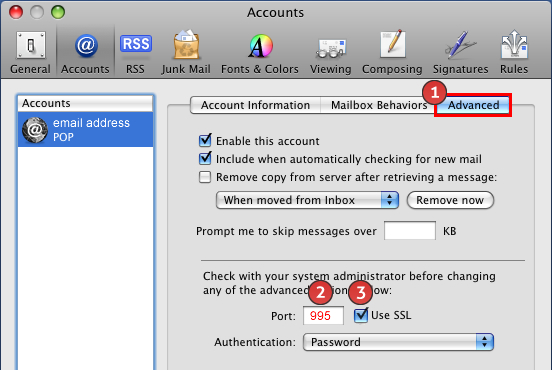
18. Do the following:
- 1. Select the “Advanced” tab
- 2. Enter 995 for the “Port”
- 3. Select “Use SSL”
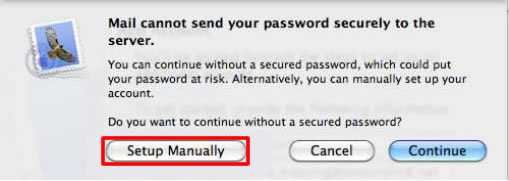
19. Select the red circle in the upper left hand corner.

20. Select “Save”.