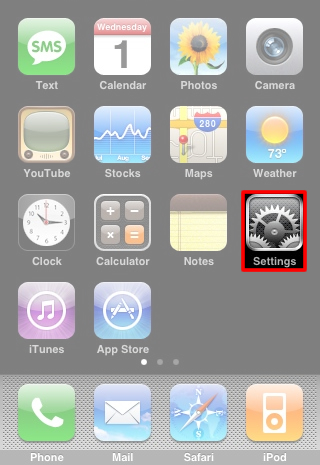
1. Select “Settings”.
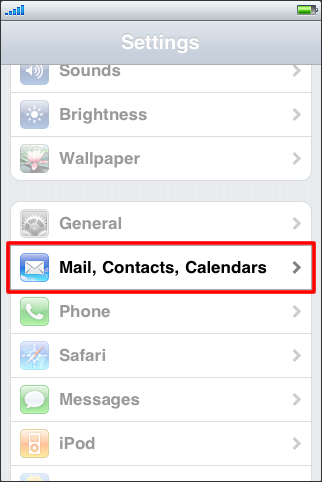
2. Select “Mail, Contacts, Calendars”.
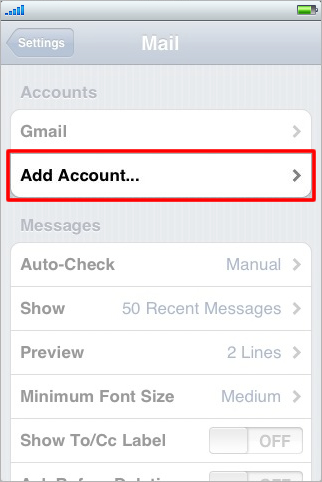
3. Select “Add Account”.
4. Select “Other”.
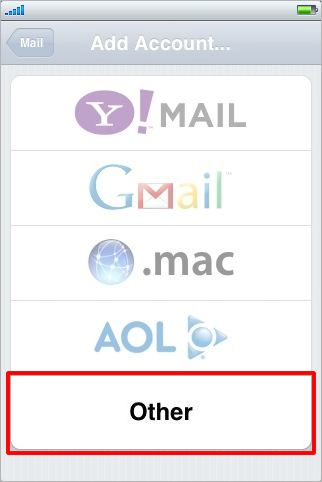
5. Select “Add Mail Account”.
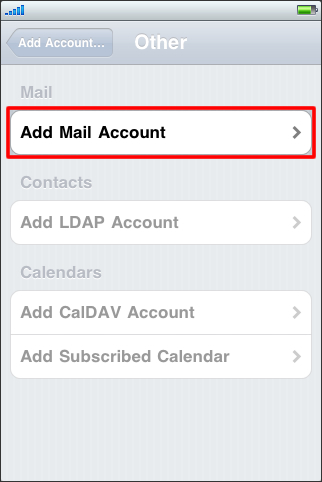
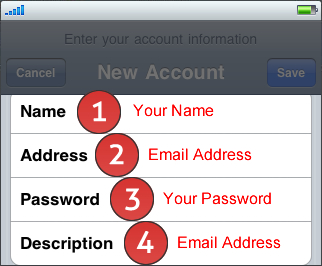
6. Enter the following:
- 1. Your Name
- 2. Email Address
- 3. Your Password
- 4. Email Address
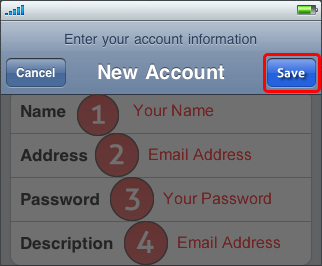
7. Select “Save”.
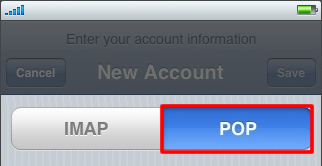
8. Select “POP”.
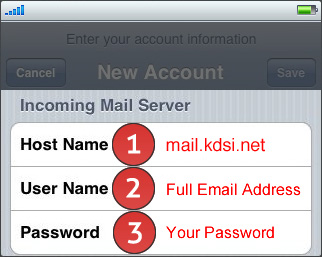
9. Enter the following for the “Incoming Mail Server”:
- 1. mail.kdsi.net
- 2. Full Email Address
- 3. Your Password
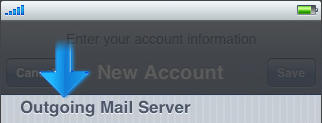
10. Scroll down to “Outgoing Mail Server”.
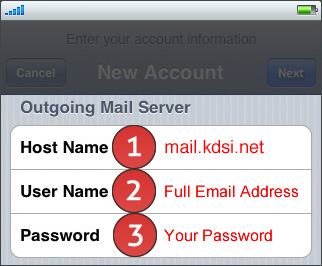
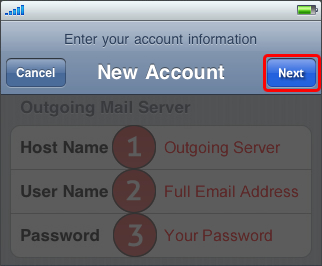
11. Enter the following for the “Outgoing Mail Server”:
- 1. mail.kdsi.net
- 2. Full Email Address
- 3. Your Password
12. Select “Next”.
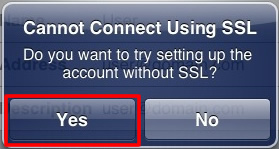
13. If you see this screen, select “Yes”.
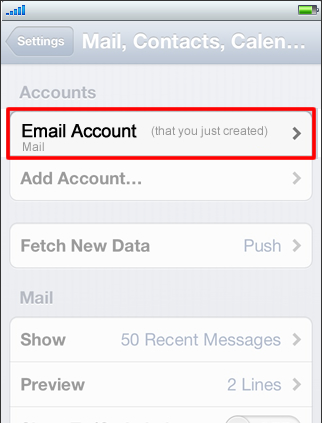
14. Select the Email account you just created.
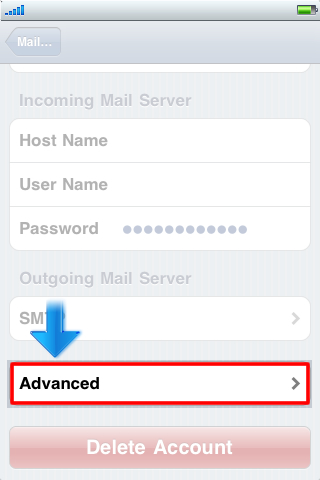
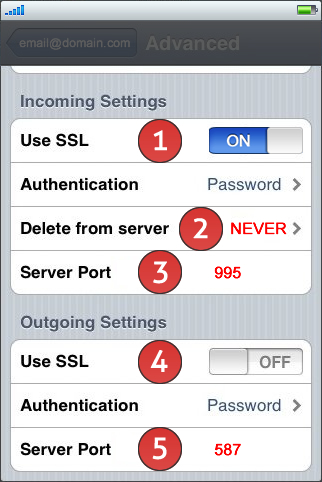
15. Scroll down. Select “Advanced”.
16. Enter the following:
- Incoming Settings:
- 1. Use SSL: ON
- 2. Server port: 995
- 3. Delete from server: NEVER. This leaves a copy of email(s) on the server.
- Outgoing Settings:
- 4. Use SSL: OFF
- 5. Server port: 587
17. Select your email address to save your settings.